I created this JS library as an open source project.
to provide beautiful alert box messages made with just HTML, CSS and JS.
Feel free to contribute a pull request or suggestions. Because the community that uses it is the same that contributes!

-
Clone this repository in your project's lib folder or download the JS and CSS files.
-
Import "style.css" and "awesomeAlert.js" into your code as described below:
<!DOCTYPE html>
<html lang="en">
    <head>
        <script defer src="libs/awesome-alert/awesomeAlert.js"><script>
        <link rel="stylesheet" href="libs/awesome-alert/style.css">
    </head>
</html>To use the library, simply select a button and call the awesomeAlert() function. Like the example below:
const btnSuccess = document.querySelector('.show-Success')
btnSuccess.addEventListener('click', () =>{
    awesomeAlert({
        type: 'success',
        title: 'Success!',
        message: 'Successful action!',
        img: 'imgs/success.svg',
        buttonOK: 'Done!',
    })
})
If you want to use the Question, just follow the example below:
const btnQuestion = document.querySelector('.show-Question')
btnQuestion.addEventListener('click', () =>{
    awesomeAlert({
        type: 'question',
        title: 'Do you like cats?',
        message: 'Could you answer me?',
        img: 'imgs/question.svg',
        buttonConfirm: 'Yes',
        buttonCancel: 'No',
        closeStyle: 'circle'
    })
})
If you want to receive written information from the user, use input. as below:
const btnInput = document.querySelector('.show-Input')
btnInput.addEventListener('click', () =>{
    awesomeAlert({
        type: 'input',
        title: 'What is your name?',
        placeholderInput: 'Gabriel Dutra'
        img: 'imgs/input.svg',
        buttonOK: 'Submit',
        closeStyle:  'circle'
    })
})
If you are interested in using a non-default alert, I recommend using custom. This will give you greater color freedom for your awesome alert! Example below:
const btnCustom = document.querySelector('.show-Custom')
btnCustom.addEventListener('click', () =>{
    awesomeAlert({
        type: 'custom',
        title: 'You can start?',
        message: 'The game is just catching the balls.',
        bgColor: '#23a5c8',
        img: 'imgs/custom.svg',
        buttonOK: 'GO!',
        closeStyle:  'circle'
    })
})The function returns a promise, which returns the user's action.
With this return, you can use the then method to show something to the user.
const btn = document.querySelector('#Show')

btn.addEventListener('click', () => {
    awesomeAlert({
        type: 'error',
        title: 'Error',
        message: 'Error in System!',
        img: './imgs/error.svg',
        closeStyle: 'circle'
    })
    .then(a => alert(a))
})
This can be very useful to know what your app/website user did when they saw your alert.
| Name | type | Default | Description |
|---|---|---|---|
title |
string |
"Success" |
Will be the alert title. |
message |
string |
"Success action" |
Will be the alert message. |
buttonConfirm |
string |
'Confirm!' |
This will appear on the Confirm button. |
buttonCancel |
string |
'Cancel.' |
This will appear on the Cancel button. |
buttonOK |
string |
'OK!' |
It will be what will appear on the OK button. |
img |
string |
"" |
It will be the image that will appear to the user. Enter the path to access the image. |
type |
string |
"success" |
Will define what type of alert will be shown. |
closeStyle |
string |
"default" |
Will be the style of the close alert button. |
placeholderInput |
string |
"write..." |
Input placeholder, which is displayed in the alert input. |
bgColor |
string |
"#2dd284" |
It is used to manipulate header and button background colors. Accepting #HEX, rgb(red, green ,blue) and rgba(red, green ,blue, alpha). |
header |
bolean |
true |
It is used to say if it will have a header. |
playSound |
string |
null |
Sound that plays when calling alerts. |
Types that this library allows of alerts:
successerrorwarninginfoquestionopiniondarkinputcustom
Toast are small animations that will appear in the corner of the screen, called by the awesomeToast() function.

const btnToast = document.querySelector('#btn-Toast')

btnToast.addEventListener('click', () => {
    awesomeToast({
        type: 'success',
        title: 'SUCCESS!',
        message: 'Action Success!',
        img: './imgs/success.svg',
        timer: 3000,
        position: 'right'
})| Name | type | Default | Description |
|---|---|---|---|
title |
string |
"Success" |
Will be the alert title. |
message |
string |
"Success action" |
Will be the alert message. |
position |
string |
'right' |
It will be the position that the toast will appear. |
img |
string |
"" |
Will be the image that will appear to the user. |
type |
string |
"success" |
Will define what type of alert will be shown. |
timer |
number |
2000 |
It will be the time the Toast will be on the screen in ms. |
bgColor |
string |
"#2dd284" |
It is used to manipulate header and button background colors. Accepting #HEX, rgb(red, green ,blue) and rgba(red, green ,blue, alpha). |
playSound |
string |
null |
Sound that plays when calling alerts. |
successerrorwarninginfodarkcustom
The horizontal alert is wider. Great for making long messages. You can call it by the awesomeHorizontal() function.
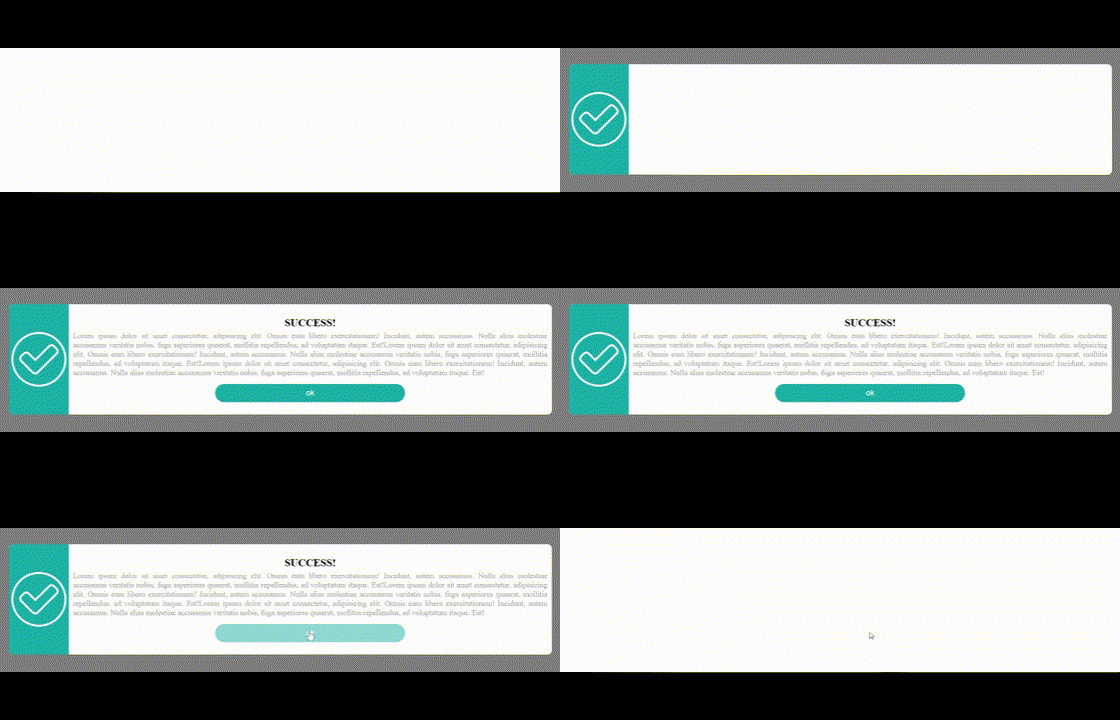
const btnHorizontal = document.querySelector('#btn-Horizontal')

btnHorizontal.addEventListener('click', () => {
    awesomeHorizontal({
        type: 'success',
        title: 'SUCCESS!',
        message: 'Action Success!',
        img: './imgs/success.svg',
        buttonOK: 'Done!'
})| Name | type | Default | Description |
|---|---|---|---|
title |
string |
"Success" |
Will be the alert title. |
message |
string |
"Success action" |
Will be the alert message. |
buttonOK |
string |
'OK!' |
It will be what will appear on the OK button. |
img |
string |
"" |
Will be the image that will appear to the user. |
type |
string |
"success" |
Will define what type of alert will be shown. |
bgColor |
string |
"#2dd284" |
It is used to manipulate header and button background colors. Accepting #HEX, rgb(red, green ,blue) and rgba(red, green ,blue, alpha). |
header |
bolean |
true |
It is used to say if it will have a header. |
playSound |
string |
null |
Sound that plays when calling alerts. |
successerrorwarninginfodarkcustom
Thanks @gustavosmanc for having a library that inspired me to make this library.
Pull requests, feedbacks and suggestions are welcome!