
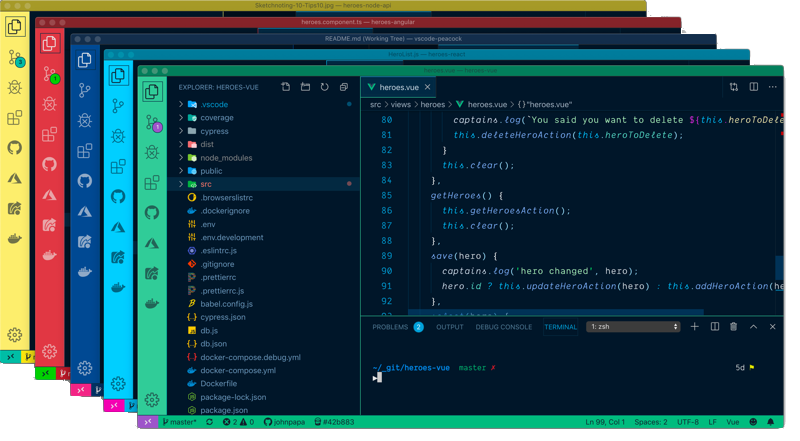
Subtly change the color of your Visual Studio Code workspace. Ideal when you have multiple VS Code instances, use VS Live Share, or use VS Code's Remote features, and you want to quickly identify your editor.
Read the extensive documentation here which includes a guide on how to use Peacock and a changelog









- Open Extensions sideBar panel in Visual Studio Code and choose the menu options for View → Extensions
- Search for
Peacock - Click Install
- Click Reload, if required
Read the extensive documentation here which includes a guide on how to use Peacock and a changelog
Let's see Peacock in action!
- Create/Open a VSCode Workspace (Peacock only works in a Workspace)
- Press
F1to open the command palette - Type
Peacock - Choose
Peacock: Change to a favorite color - Choose one of the pre-defined colors and see how it changes your editor
Now enjoy exploring the rest of the features explained in the docs!
- Peacock docs on GitHub Pages
- Get VS Code
- Create your first VS Code extension
- VS Code Extension API
- Learn how to add WebPack bundles to your favorite extensions
Inspiration comes in many forms. These folks and teams have contributed either through ideas, issues, pull requests, or guidance. Thank you!
-
The VS Code team and their incredibly helpful guide for creating extensions
-
Here are some great examples for extensions from the VS Code team
The fastest way to contribute is with Copilot CLI — it knows this repo's conventions automatically:
copilot "Add a new command called 'Change to a Seasonal Color' that picks a color based on the current season"
Or contribute manually — see CONTRIBUTING.md for the full guide:
- Fork this repo and create a branch
npm install→ make your changes →npm test- Open a PR
See AGENTS.md for the full project guide including architecture, patterns, and how to add commands/settings.
Contribution guidelines are located here
Thanks goes to these wonderful people (emoji key):


This project follows the all-contributors specification. Contributions of any kind welcome!