


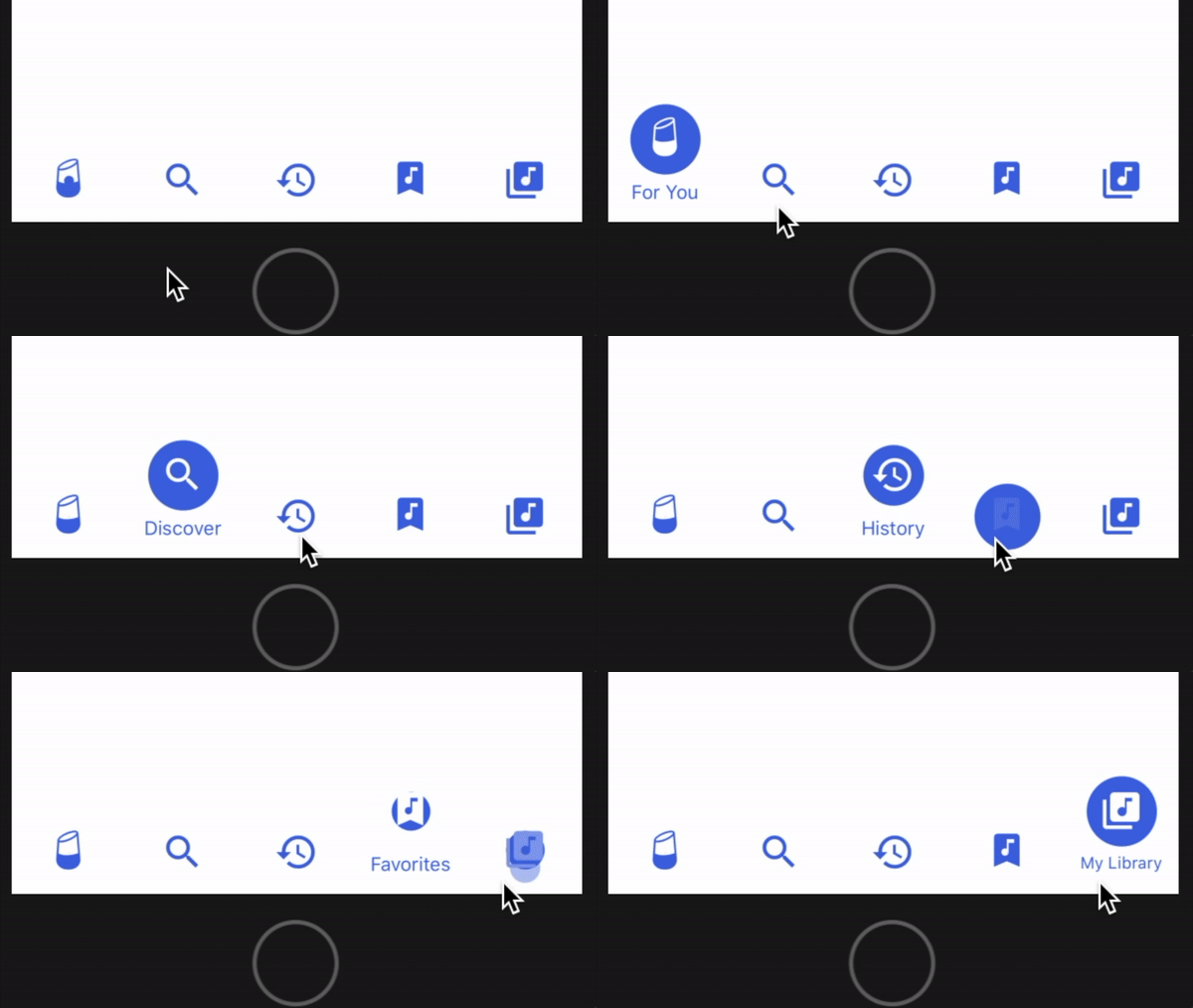
This is an enhanced version of 10clouds' fluid tab bar for React Native.
Changes:
- Added Expo compatibility by removing
react-native-view-overflowand the need to link it. - Added integrated vector icons via @expo/vector-icons so you don't have to supply your own icons.
- Tab bar now auto-selects first tab index on mount (this behavior is customizable).
- Tab bar background color is now fully customizable.
- Icon highlight color on select is now fully customizable.
- Icon font size and font family is now fully customizable.
- Deprecated the ability to provide image sources for icon images.
- Removed example project in favor of expanded usage documentation.
yarn add enhanced-fluid-bottom-navigation-bar
npm i enhanced-fluid-bottom-navigation-bar
This component requires just 2 props:
onPress: a function that should handle rendering tabs.values: an array of objects that contains the title and icon properties for each tab.
<TabBar
  onPress={(tabIndex) => { this._handlePress(tabIndex) }}
  values={[
    {
      title: 'News',      // required
      icon: 'news',       // required
      iconSet: 'Entypo',  // required
      size: 32            // required (icon will be size x size)
    }
  ]}
/>
Look up valid icon names and their corresponding icon set at the @expo/vector-icons directory.
- Define a custom component that renders
TabBarwith thevaluesyou want. React's tab navigator will passnavigationandonTabPressprops to your component when hooked up; use these to implement theonPresscallback to navigate to the appropriate route:
import TabBar from 'enhanced-fluid-bottom-navigation-bar';

class FluidTabBar extends Component {
  render() {
    return (
      <TabBar
        onPress={tabIndex => {
          let route = this.props.navigation.state.routes[tabIndex];
          this.props.onTabPress({route});
        }}
        values={[
          {
            title: 'Tab 1',
            icon: 'star',
            iconSet: 'MaterialIcons',
            size: 32
          }, {
            title: 'Tab 2',
            icon: 'check',
            iconSet: 'AntDesign',
            size: 32
          }
        ]}
      />
    );
  }
}
In this case, pressing a tab in FluidTabBar navigates to the route that shares the same array index.
- Create a tab navigator and supply our custom component to
tabBarComponent.
import {createBottomTabNavigator} from 'react-navigation-tabs';

const myTabNavigator = createBottomTabNavigator(
  {  // RouteConfigs
    Tab1: { screen: Tab1Screen },
    Tab2: { screen: Tab2Screen },
  },
  {
    initialRouteName: 'Tab1',
    tabBarComponent: FluidTabBar,
  }
);- Create an app container from your tab navigator and use it as your top-level component.
import {createAppContainer} from 'react-navigation';

const myAppContainer = createAppContainer(myTabNavigator)| Prop | Type | Default | Description |
|---|---|---|---|
| tintColor | String | rgb(76, 83, 221) | Icon bubble background color and text color. |
| selectColor | String | rgb(255, 255, 255) | Icon tint or highlight color when selected. |
| backgroundColor | String | rgb(255, 255, 255) | Tab bar background color. |
| autoSelect | Number | 0 | Auto-selects the tab at this index on mount. |
| fontSize | Number | 15 | Font size for tab captions. |
| fontFamily | String | 'serif' | Font family for tab captions. |
Original Author: Patryk Mierzejewski
Modifications By: Victor Li
Available under the MIT license. See the LICENSE file for more info.