⚛ + 🔥 = 🌯
We'll build a web app that displays, in real time, the tastiness of a burrito. It will listen to Cloud Firestore for its data, and we'll configure Firebase Performance Monitoring so we can get some perf stats.
To see the completed app, check out this StackBlitz workspace.
Prerequisite: make sure you have Node.js installed.
npx create-react-app myapp
cd myapp# yarn
yarn add firebase reactfire@canary
# or
# npm
npm install firebase reactfire@canary-
Go to the Database tab in the Firebase console. If your project doesn't have a Cloud Firestore instance yet, initialize it in locked mode
-
Add a document
-
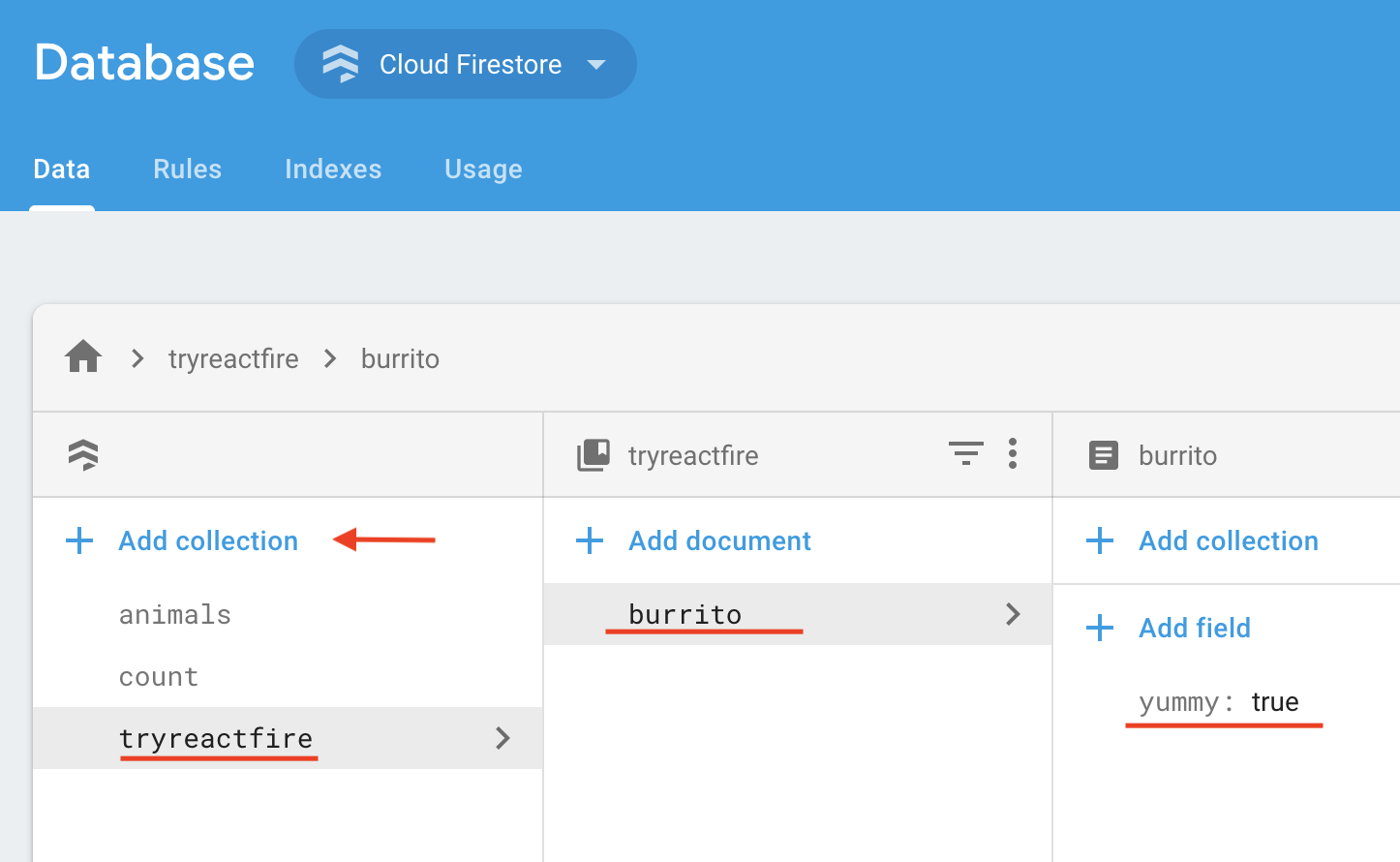
In the Data tab of the console, click Add Collection
-
Name the collection tryreactfire
-
Add a document with ID burrito and boolean field
yummy: true
-
-
Add the following to your security rules and click Publish
match /tryreactfire/burrito {
  allow read: if true;
  allow write: if request.auth.uid != null;
}
-
Import firebase and reactfire
//...
import { FirebaseAppProvider } from 'reactfire';
import 'firebase/performance';
//...
-
Wrap your app in a
FirebaseAppProviderand provide the config object from the Firebase console//... const firebaseConfig = { /* add your config object from Firebase console */ }; ReactDOM.render( <FirebaseAppProvider firebaseConfig={firebaseConfig} initPerformance> <App /> </FirebaseAppProvider>, document.getElementById('root') ); //...
-
Import the
useFirestoreDocDataanduseFirestorehooks//... import { useFirestoreDocData, useFirestore } from 'reactfire'; //...
-
Add a function component
//...
function Burrito() {
  // lazy load the Firestore SDK
  const firestore = useFirestore();

  // create a document reference
  const burritoRef = firestore()
    .collection('tryreactfire')
    .doc('burrito');

  // subscribe to the doc. just one line!
  const burrito = useFirestoreDocData(burritoRef);

  // get the value from the doc
  const isYummy = burrito.yummy;

  return <p>The burrito is {isYummy ? 'good' : 'bad'}</p>;
}
//...
-
Render your component inside of a
Suspensetag
We need to do this because
useFirestoreDocDatathrows a Promise while it is waiting for a response from Firestore. Suspense will catch the Promise and renderfallbackuntil the Promise is resolved.
Replace the App function with the following:
//...
function App() {
  return (
    <div className="App">
      <SuspenseWithPerf
        fallback={'loading burrito status...'}
        traceId={'load-burrito-status'}
      >
        <Burrito />
      </SuspenseWithPerf>
    </div>
  );
}
//...yarn start
# or
npm run start- Edit the value of
yummyin the Firebase console, and watch it update in real time in your app! 🔥🔥🔥
By passing the initPerformance prop to FirebaseAppProvider, our app will automatically measure common performance stats, as well as report on our custom trace, load-burrito-status, that we set in the traceId prop of SuspenseWithPerf.
However, Firebase Performance Monitoring can take about 12 hours to crunch your data and show it in the Performance tab of the Firebase console.
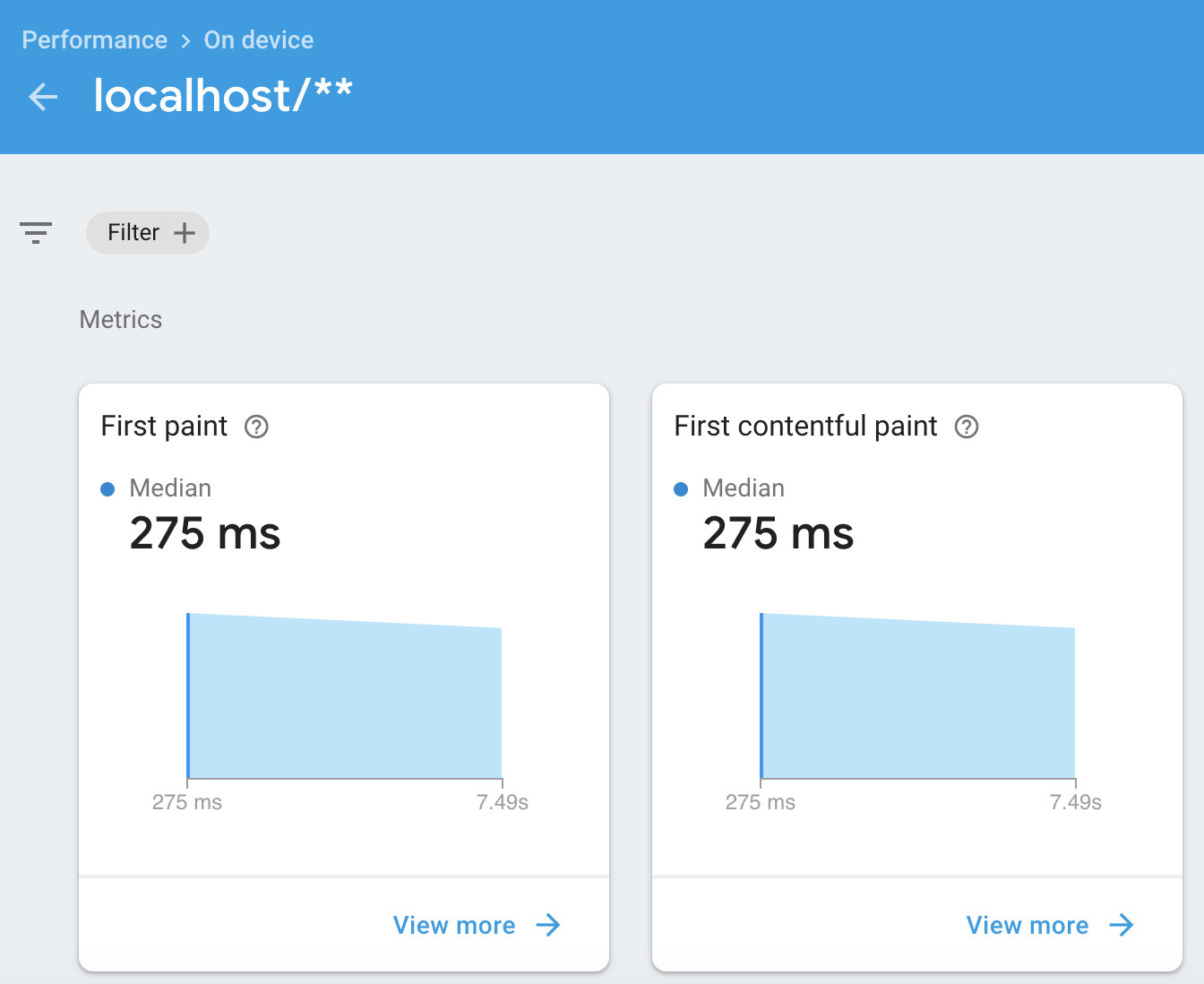
This is an example of some of the stats in the Firebase Performance Monitoring console after 12 hours: